 0406 509 345
 info@a1printing.online

Artificial Intelligence has changed the way businesses create artwork. From shop signage to banners and business cards, AI tools can generate designs in minutes. However, what looks perfect on screen is not always ready for professional printing. Many AI-generated files require technical adjustments to avoid colour shifts, pixelation, or layout problems.
At A1 Printing & Signage, we regularly optimise AI-created artwork to ensure clean, high-quality results. If you’re using AI to design your signage or marketing material, here are five essential checks you should never skip.
1. Use CMYK Colour Mode for Accurate Printing
Most AI platforms export files in RGB because they are built for digital screens. Printing machines, however, use CMYK ink.
Why it matters:
- RGB colours often appear brighter on screens.
- Without converting to CMYK, your final print may look darker or different from your design.
Quick Tip: Always convert your artwork to CMYK before exporting to maintain colour consistency.
2. Export Vector Files or High-Resolution Artwork
Low-resolution files are one of the biggest issues with AI designs. A graphic that looks sharp online can become blurry when enlarged for signage.
Best formats for printing:
- AI
- EPS
- SVG
Vector files scale without losing quality, making them ideal for large signs, vehicle graphics, and promotional displays.
3. Add Proper Bleed (Minimum 5mm) to Avoid White Edges
Bleed is the extra background area that extends beyond the final trim size of your artwork. During the cutting process, even a small movement can expose thin white edges if bleed is not included.
Recommended practice:
- Add a minimum 5mm bleed margin on all sides of your design.
- Extend background colours, images, and graphics past the artboard edge.
- Never place important text or logos inside the bleed area.
Setting up bleed correctly ensures precise trimming and delivers a clean, professional finish for your printed signage.
4. Keep Text Within a Safe Margin
AI layouts sometimes place text too close to the edges. During trimming or installation, important details can get cut off or look unbalanced.
Safe margin guideline:
- Keep logos, phone numbers, and key text at least 10–15mm inside the artboard.
- Maintain clear spacing for better readability and visual balance.
A strong layout not only looks better but also improves customer engagement.
5. Convert Fonts to Outlines Before Exporting
AI-generated files usually don’t include the original font data. Even when you create the design yourself, fonts can still change if they are not properly prepared for print. If the printer’s system doesn’t have the same font installed, your layout may shift or display incorrectly.
Before sending your artwork:
- Convert all fonts to outlines or curves.
- Check spacing and alignment after outlining.
- Flatten special effects or transparencies where needed.
Outlining fonts locks your design exactly as created, ensuring consistent results with no font substitutions or unexpected layout issues during printing.
Final Advice from A1 Printing & Signage
AI is a powerful design assistant, but professional printing still requires technical preparation. By checking colour mode, file quality, bleed, safe margins, and font outlines, you can avoid delays and achieve a sharp, high-quality result.
If you’re unsure whether your AI artwork is print-ready, A1 Printing & Signage can help. Our team reviews, adjusts, and prepares files to ensure your signage prints perfectly the first time.
Need expert help with your AI designs? Contact A1 Printing & Signage today and let us turn your ideas into premium-quality printed signage.


Vehicle Signage

Vehicle Signage


Vehicle Signage
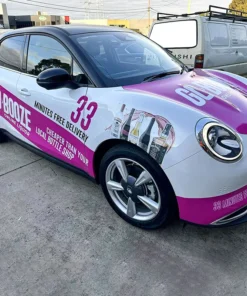

Vehicle Signage


Presentation Folder

Folded Brochure

Booklets
